
Client Settings
When clients install your app, you may need them to provide additional information. For example, if you integrate with another software you may need their account ID or password. Through the Client Settings section, you can add the fields that you need to collect and specify if they're required or not before the client is able to install your app.
If you're looking for how to collect data from the client's Commerce7 account, go to Configure your App Version.
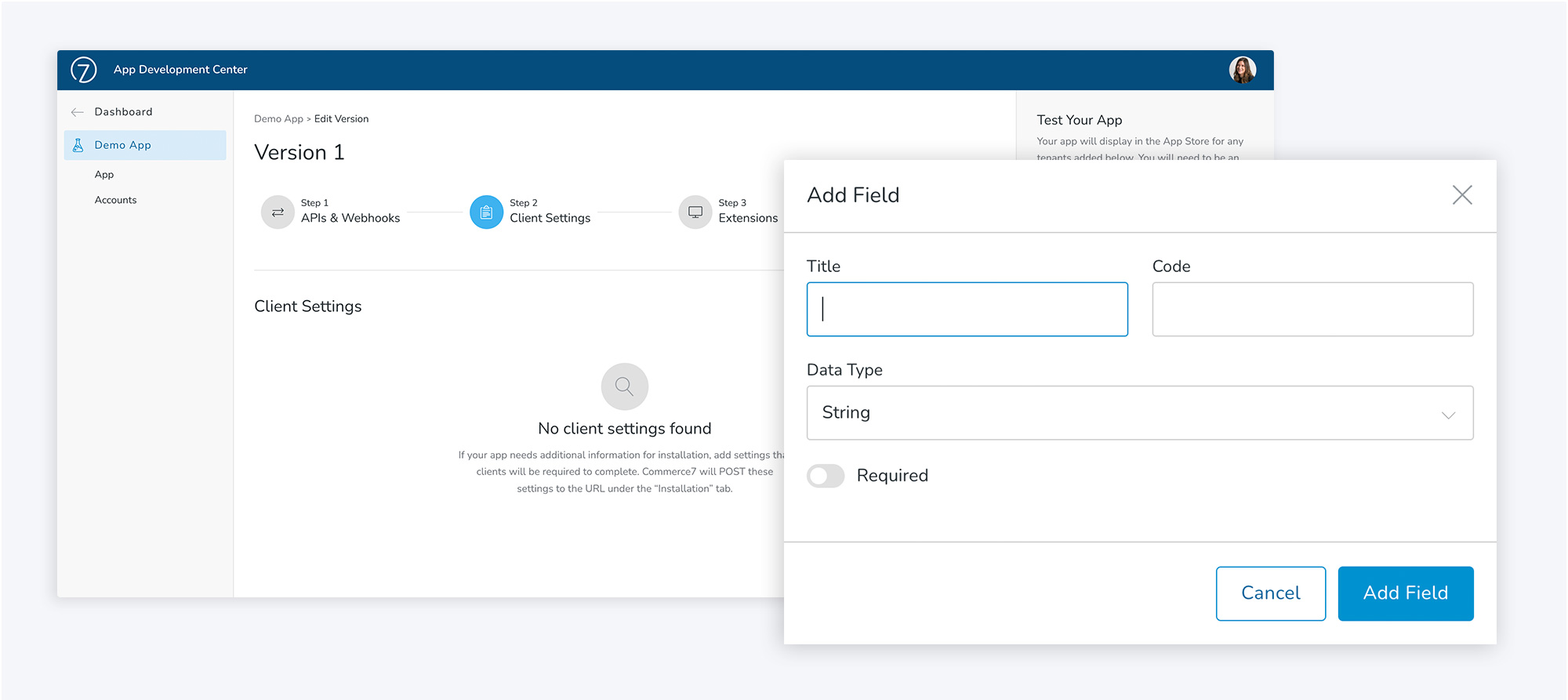
- In your app version, click on Step 2. Client Settings
- Click Add Field
- Enter a Title. This will be the label of the field.
- Enter a Code. This will be used to reference the field and cannot be edited after the field has been added.
- Select the Data Type.
Options include: String, TextArea, Integer, Number, HTML, True / False, Yes / No, Radio, Checkbox, Select, Date Picker. - Click the toggle to make the field Required
- Click Add Field
- If you have multiple fields, you can drag and drop to re-arrange the order that they're displayed to the client.
- When a client installs your app from the App Store, they will be prompted with a modal for them to enter all of the data that you've specified. In this example, the client setting fields are:
- Mode
- Customer Number
- Sync WineShipping Inventory with Web Shipping Inventory
- Email Notifications on Inventory Sync
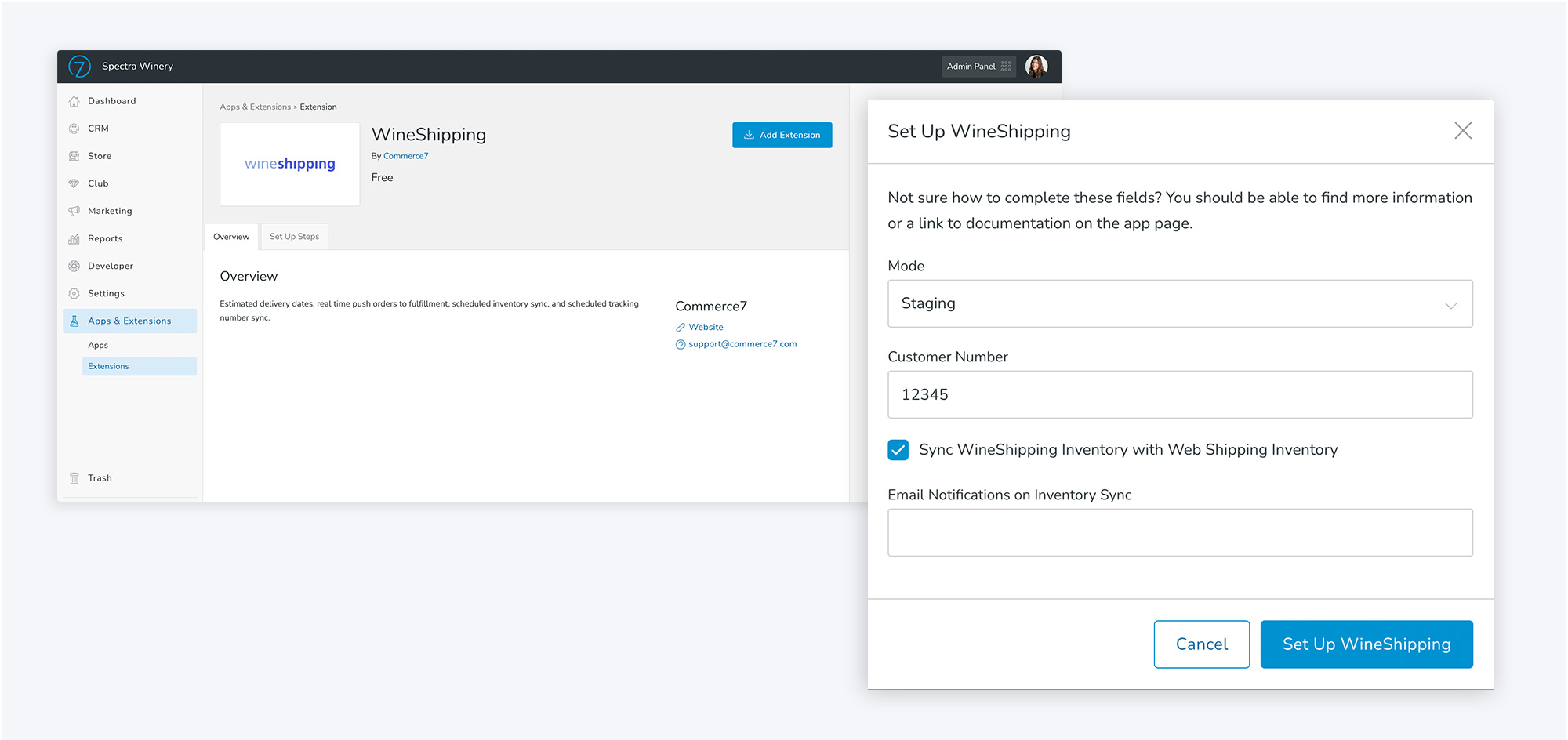
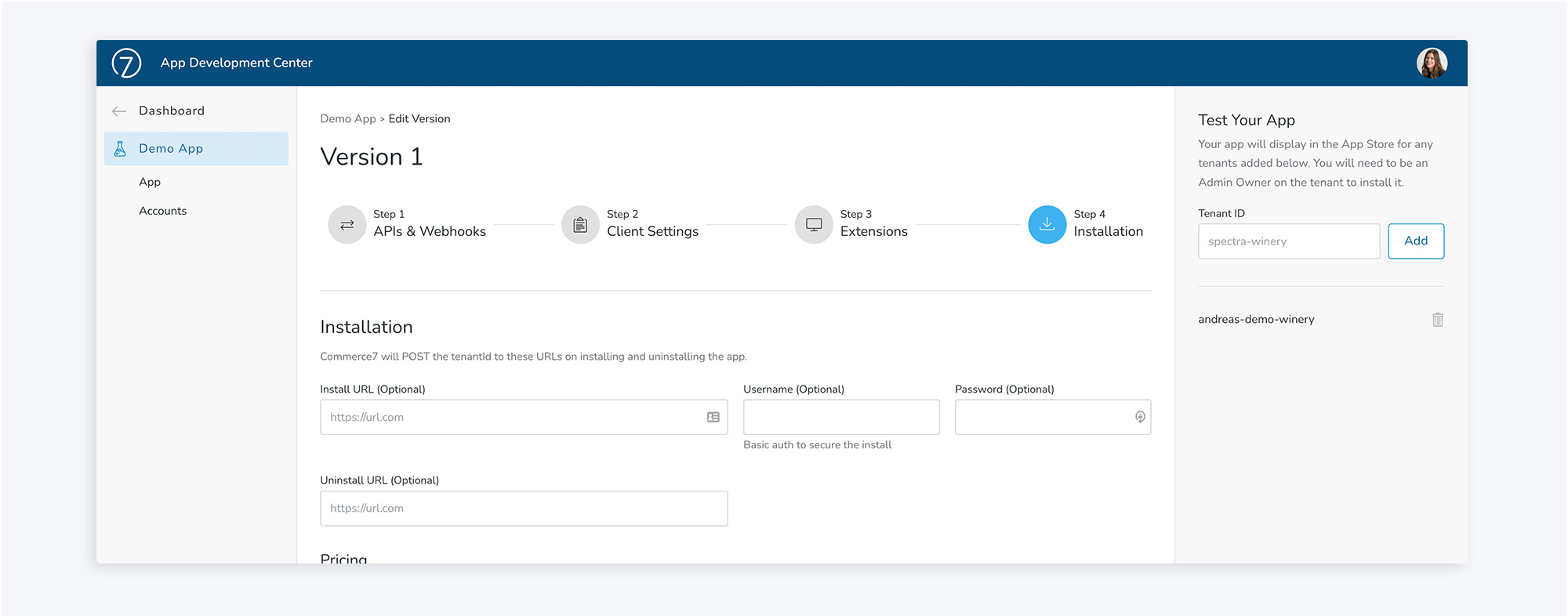
- Once they confirm, Commerce7 will POST this information to the Install URL set under your version's Installation tab, so make sure that one is added.
In addition, you'll receive information on who installed the app; tenant ID, first name, last name and email address.
Updated about 1 month ago
Did this page help you?